
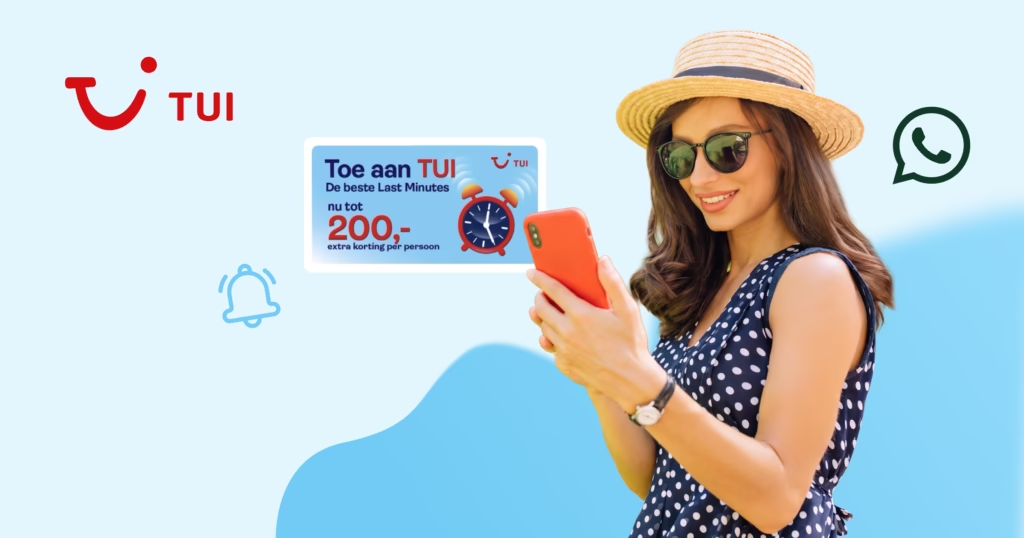

WhatsApp marketing template formats let a business send a campaign message as a video, a row of swipeable product cards, or a countdown offer with buttons. Customers can compare products, copy a discount code, or open the shop from the chat in one step. Each format is a template, a message the business writes in advance and Meta approves before it goes out. Once approved, a template keeps its cards, text, and buttons, so one design can carry a whole campaign.
Key Takeaways
- A media card carousel shows 2 to 10 swipeable cards in one message, and the card count is fixed when the template is approved.
- A limited-time offer template adds an offer code and a live countdown, and people who open it in the WhatsApp web or desktop app see only a notice that the offer is not supported.
- Video headers accept MP4 or 3GPP files of up to 16 MB with H.264 video and AAC audio.
- A template can carry up to 10 buttons, and once it has more than three, two show in the message and the rest move behind a “See all options” button.
- 360Dialog gives businesses WhatsApp Business API access to create these templates, and Meta reviews each one before its first send.
What Is a WhatsApp Marketing Template Format?
A WhatsApp marketing template format is the layout of an approved campaign message: plain text, a media header, a card carousel, an offer with a countdown, or a mix of these with buttons. Marketing is one of the template categories Meta defines, and marketing templates typically serve engagement, brand awareness, and sales.[1] They are also the one template type that works with both of Meta’s sending routes, Cloud API and the Marketing Messages API.
Meta groups carousels, limited-time offers, and coupon codes among its specialty marketing templates, and each one adds its own rules:
| Format | What the person sees | Best for | Key limit |
|---|---|---|---|
| Template with a media header | Text with an image, video, or document above it and buttons below | Launches, announcements, product demos | Body up to 1,024 characters |
| Media card carousel | 2 to 10 cards to swipe sideways, each with an image or video and up to two buttons | Several products or the steps of a process | Card count fixed at approval |
| Limited-time offer | An offer code, a countdown to expiry, and a button to the shop | Promotions with an end date | Hidden in the WhatsApp web and desktop apps |
| Coupon code | A button that copies a discount code | One code with no deadline | One copy code button per template |
Sending any of these formats to a large list is subject to Meta’s messaging limits and template pacing.
What Parts Does Every Marketing Template Share?
Every marketing template is built from up to four parts: a required body plus an optional header, footer, and buttons.[2] Knowing each limit before drafting lets the copy fit the format on the first pass. Variables are placeholders, such as a first name, that the business fills in at send time, and Meta needs a sample value for each one when the template is created.
The examples below come from an example spring collection launch.
| Part | Required | Limit | Example |
|---|---|---|---|
| Body | Yes, one per template | 1,024 characters; several variables allowed | “Hi {{1}}, the spring collection is now in stores and online.” |
| Text header | No | 60 characters; one variable | “New for Spring, {{1}}” |
| Media header | No | An image, video, GIF, or document such as a PDF | A short clip of the new jacket |
| Location header | No | A map of a location set at send time; live location is not supported | The store hosting the launch |
| Footer | No | 60 characters; text only | “Available while stocks last” |
| Buttons | No | Covered in the buttons section below | “Shop the collection” |
GIF headers are MP4 files of up to 3.5 MB, and they work only through the Marketing Messages API. WhatsApp shows a larger file as a regular video.
Which Image and Video Files Work in a Template Header?
Template headers accept JPEG and PNG images of up to 5 MB and MP4 or 3GPP videos of up to 16 MB.[3] Video that plays on every phone also needs the right encoding.
| Media | File types | Maximum size | Encoding | Example |
|---|---|---|---|---|
| Image | JPEG, PNG | 5 MB | 8-bit, RGB or RGBA | A product photo on a plain background |
| Video | MP4, 3GPP | 16 MB | H.264 video and AAC audio, with one audio stream or none | A short demo of the product in use |
Some Android phones cannot play video saved with advanced compression settings. Export the video as H.264 with the Main or Baseline profile and the “fast start” option turned on, settings most video editing tools offer at export. A file whose type does not match its extension fails with error 131053, a mismatched MIME type.
We suggest keeping campaign video short, clear with the sound off, and framed so the product stays visible on a phone screen.
How Do Media Card Carousel Templates Work?
A media card carousel template sends one marketing template message with 2 to 10 cards that people swipe sideways, each card with its own image or video and up to two buttons.[4] It lets a business show a product range, or the steps of a process, in a single message. Only marketing templates can include carousel cards. The business sets the exact card count when it creates the template, and an approved template always sends that same number of cards. A campaign that needs five cards therefore needs its own five-card template.
The examples below show three new trail running shoes.
| Field | Limit | Example |
|---|---|---|
| Message body above the cards | Required; 1,024 characters; variables allowed | “Hi {{1}}, three new trail shoes just arrived.” |
| Cards | 2 to 10, fixed at creation | 3 cards, one per shoe |
| Card header | An image or video on every card, cropped automatically to a wide ratio for each device | Side view of each shoe |
| Card body text | Optional, but once one card has it, every card needs it; 160 characters including variables | “Waterproof upper, sizes 38 to 47” |
| Card buttons | Up to two per card, mixing quick reply, phone number, and URL buttons; every card has the same components | “Shop now” and “Remind me” |
URL buttons open the phone’s default browser, and the purchase then happens outside WhatsApp. An order placed there triggers no webhook, the automatic notice WhatsApp sends to the business’s server. For shopping that stays inside WhatsApp, Meta points to product card carousel templates.[5] Their cards come from a product catalog and show a product image, title, price, and a single View or URL button.
Quick reply buttons can carry a hidden value, the payload, which the business sets at send time. When someone selects the button, the payload comes back in the messages webhook at messages.button.payload. Setting a different payload on each card shows which product a person chose.
We suggest giving each card one product angle or one step, with photos in a consistent style so the cards read as one set. Carousels sent as a reply inside an open conversation are a separate message type, covered in our guide to interactive messages.
How Do Limited-Time Offer Templates Work?
A limited-time offer template is a marketing template that shows an offer code with a countdown to its expiry.[6] A business can run a dated promotion from one message, with the code and the deadline side by side. The format allows no footer. People who open the message in the WhatsApp web or desktop app see only a notice that the offer is not supported there.
The examples below come from a weekend sale.
| Field | Limit | Example |
|---|---|---|
| Header | Optional; an image or video | Photo of the sale items |
| Body | 600 characters; variables count toward the limit | “Hi {{1}}, outerwear is reduced until Sunday night.” |
| Offer text | Required; 16 characters | “Weekend sale” |
| Offer code | Example required at creation; 15 characters | “WEEKENDSALE” |
| URL button | Required; label 25 characters with one variable; URL 2,000 characters with one variable at the end | “Shop the sale” |
| Copy code button | Required and first in the button order when the expiry is shown | Copies “WEEKENDSALE” |
The countdown appears when the template sets has_expiration to true. The copy code button is then required and must come first in the button list.[7] The countdown text cannot be customized, and it turns red when someone views the message within the last hour before the code expires. At send time, the business supplies the real code and the expiry, written as a UNIX timestamp in milliseconds in the expiration_time_ms field.
Businesses based in Brazil can also combine the format with payment request buttons for Pix, Boleto, or Payment Link. For a code with no deadline, a coupon code template uses a single copy code button that puts the code on the person’s clipboard.[8]
Which Buttons Can a Marketing Template Use?
A marketing template can carry up to 10 buttons in total, across five button types with their own limits. Choosing the types with these limits in mind keeps the main action visible and the message readable on desktop.
| Button | What it does | Maximum per template | Label limit | Example |
|---|---|---|---|---|
| Quick reply | Sends its label back to the business as a reply | 10 | 25 characters | “Stop promotions” |
| URL | Opens a page in the phone’s browser | 2 | 25 characters; URL 2,000 characters with one variable at the end | “Shop now” |
| Phone number | Calls the business number | 1 | 25 characters; number 20 characters | “Call the store” |
| Copy code | Copies a code to the clipboard | 1 | Code 20 characters, or 15 in a limited-time offer | “SPRINGSALE” |
| Voice call | Starts a WhatsApp call with the business | Not specified | 20 characters | “Call Now” |
Three display rules decide what the person sees:
- Quick reply buttons must sit next to each other. Two quick replies followed by a URL button is allowed, but a URL button placed between two quick replies is not.
- With more than three buttons, the message shows two and moves the rest behind a “See all options” button.
- WhatsApp desktop cannot display templates with four or more buttons, or with a quick reply plus any other button type, and asks the person to open the message on a phone.
The voice call button’s label defaults to “Call Now”, and the button stays active for 1 to 30 days. Meta’s calling documentation explains how to add it to a template.[9]
We suggest fewer buttons with short action labels such as “Shop now”. With three buttons or fewer, every button stays visible in the message.
Which Format Fits Which Campaign Goal?
The campaign goal decides the format: a carousel suits several products, a limited-time offer suits a deadline, and a video header suits a demo. Matching the two before writing saves rebuilding a template after approval.
- Several products, or the steps of a process: a media card carousel.
- A sale with a fixed end date: a limited-time offer template.
- One discount code with no deadline: a coupon code template.
- A product demo: a template with a video header.
- A purchase that stays inside WhatsApp: a product card carousel or another catalog template, covered in our guide on how to sell on WhatsApp.
- Details such as a size or a booking slot collected in the chat: WhatsApp Flows.
How Do You Build a Marketing Template with 360Dialog?
A business builds a marketing template through the WhatsApp Business API, or in the 360Dialog Hub for the formats the Hub supports, and Meta reviews it before its first send.[10] 360Dialog is an Official Meta Solution Partner that provides the WhatsApp Business API access these templates run on. The Hub lets a marketer assemble headers, body text, footers, buttons, and limited-time offers without writing code. Developers submit a template with a POST request to https://waba-v2.360dialog.io/v1/configs/templates, authenticated with the D360-API-KEY header.
Our documentation walks through limited-time offer templates and product card carousel templates field by field. Our article on why WhatsApp templates get rejected covers Meta’s review. Get API access to create a first carousel or limited-time offer template and send it to your own phone as a test.
Planning the format before the copy means each campaign message fits Meta’s limits from the first draft. Customers can then compare products, copy a code, or reach the shop from the chat in one step. The team spends less time rebuilding templates after review. Get API access to send that first campaign format through 360Dialog.
Frequently Asked Questions
How Many Cards Can a WhatsApp Carousel Template Have?
A WhatsApp media card carousel template holds between 2 and 10 cards. The business sets the exact number when it creates the template, and every send of that approved template carries the same number of cards. A campaign that needs a different card count needs a separate template, built and approved with that count.
What Header Can a Carousel Card Use?
A carousel card header is an image or a video, and every card in the carousel needs one. WhatsApp crops the media automatically to a wide ratio that fits the reader’s device. Images can be JPEG or PNG files of up to 5 MB, and videos can be MP4 or 3GPP files of up to 16 MB.
Why Can’t Some People See My Limited-Time Offer?
A limited-time offer template does not display its offer in the WhatsApp web app or the desktop app. People who open the message there see a notice that the offer is not supported, without the code or the countdown. Coupon code templates have a similar gap, since Meta does not support them in the WhatsApp web client.
How Long Can a Limited-Time Offer Code Be?
A limited-time offer code can be up to 15 characters long. The template needs an example code within that limit when it is created, and the business supplies the real code at send time. A copy code button in a standard coupon code template allows a code of up to 20 characters.
How Many Buttons Can a WhatsApp Template Have?
A WhatsApp template can have up to 10 buttons in total. Within that total, it can hold up to 10 quick reply buttons, two URL buttons, one phone number button, and one copy code button. When a template has more than three buttons, two appear in the message and the rest sit behind a “See all options” button.
What Video Format Does WhatsApp Accept in Templates?
WhatsApp template headers accept MP4 and 3GPP video files of up to 16 MB. The video must use the H.264 codec with AAC audio and carry one audio stream or none. For Android phones, Meta recommends the H.264 Main profile without B-frames, or the Baseline profile.
Sources
[1] Meta for Developers, “Marketing templates,” https://developers.facebook.com/documentation/business-messaging/whatsapp/templates/marketing-templates (accessed October 28, 2026).
[2] Meta for Developers, “Template components,” https://developers.facebook.com/documentation/business-messaging/whatsapp/templates/components (accessed October 28, 2026).
[3] Meta for Developers, “Media,” https://developers.facebook.com/documentation/business-messaging/whatsapp/business-phone-numbers/media (accessed October 28, 2026).
[4] Meta for Developers, “Media card carousel templates,” https://developers.facebook.com/documentation/business-messaging/whatsapp/templates/marketing-templates/media-card-carousel-templates (accessed October 28, 2026).
[5] Meta for Developers, “Product card carousel templates,” https://developers.facebook.com/documentation/business-messaging/whatsapp/catalogs/product-card-carousel-template-messages (accessed October 28, 2026).
[6] Meta for Developers, “Limited-time offer templates,” https://developers.facebook.com/documentation/business-messaging/whatsapp/templates/marketing-templates/limited-time-offer-templates (accessed October 28, 2026).
[7] 360Dialog documentation, “Limited-Time Offer Templates,” https://docs.360dialog.com/docs/resources/templates/limited-time-offer-templates (accessed October 28, 2026).
[8] Meta for Developers, “Coupon code templates,” https://developers.facebook.com/documentation/business-messaging/whatsapp/templates/marketing-templates/coupon-templates (accessed October 28, 2026).
[9] Meta for Developers, “Send WhatsApp Call Button Messages and Deep Links,” https://developers.facebook.com/documentation/business-messaging/whatsapp/calling/call-button-messages-deep-links/ (accessed October 28, 2026).
[10] 360Dialog documentation, “Templates,” https://docs.360dialog.com/docs/hub/template-management-ui (accessed October 28, 2026).


