
Get your WABA approved fast - 360Dialog banner on a purple background showing a WhatsApp icon moving from rejected (red X) to approved (green check).

How to Get Your First WABA Approved

A WhatsApp Business Account (WABA) is the Meta-owned object that gives you programmatic access to the WhatsApp Business Platform. Without an approved WABA, you cannot send a single message through the API.

Approval is not one decision. It is four separate reviews:

  1. Business verification
  2. Display name review
  3. Phone number registration
  4. Message template approval

The WABA approval process is really those four reviews stacked together, each with its own timeline and its own failure modes. The preparation you bring to them decides whether you go live in a few days or spend weeks in back-and-forth with Meta support.
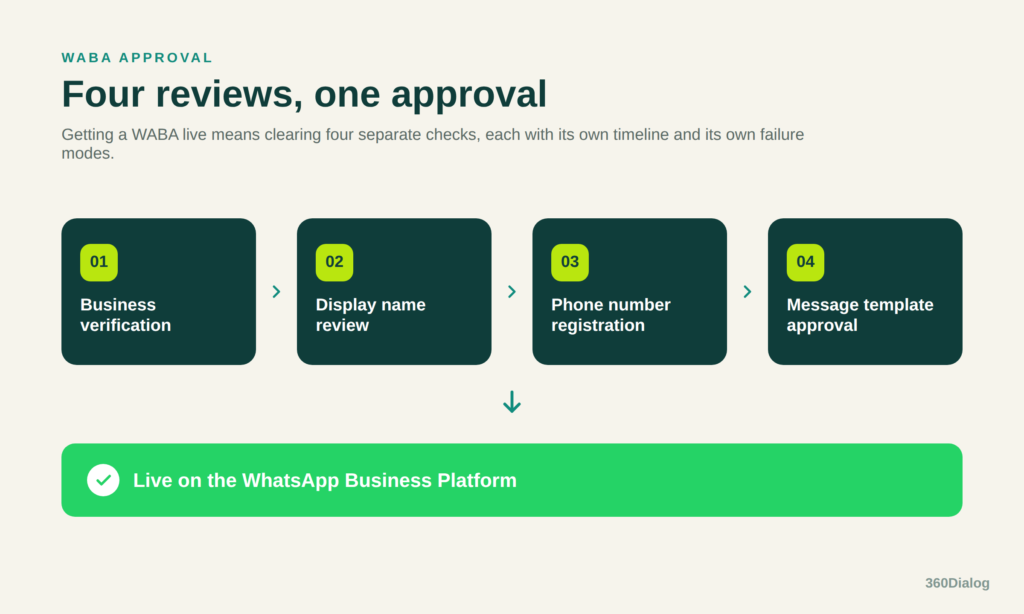
Diagram of the four WABA approval reviews: business verification, display name review, phone number registration, and message template approval, leading to going live on the WhatsApp Business Platform.

This guide is for the person responsible for getting the account live: an ops lead, technical evaluator, or founder working to a launch date. It covers what to prepare before you start, the registration sequence, the reasons for rejection that account for most failed applications, and what to do after approval to keep the account healthy.

Who this guide is for

  • You should read this if you are setting up your organization’s first WABA, if a previous application was rejected, or if you are scoping the lead time for a launch.
  • This is not for you if you only need the WhatsApp Business App on a phone. That app requires no WABA, no verification, and no API access. It also cannot run broadcast campaigns, chatbots, or CRM integration.

What is a WABA, and why does the approval process exist?

A WABA is a commercial-grade account registered within your Meta Business Portfolio that provides API-level access to WhatsApp’s messaging infrastructure. It enables what the consumer app and the WhatsApp Business App cannot support:

  • Broadcast campaigns to opted-in audiences
  • Automated messaging flows and chatbots
  • CRM and helpdesk integrations
  • Shared inbox and agent routing
  • High-volume transactional and authentication messaging

A note on naming: Meta has been migrating from “Business Manager” to “Meta Business Portfolio.” You will still see the older label in some interfaces and documentation. They refer to the same container.

Meta reviews every application because the API allows messaging at scale. Before granting that, Meta needs to establish that your business legally exists, that your use case is permitted under its Business and Commerce policies, that your phone number is eligible, and that your submitted identity matches your public one.

Understanding how the four stages fit together is what separates a clean first setup from a restart.

WhatsApp Business Account approval requirements: what to prepare first

Entering the registration flow without these materials is the most reliable way to trigger a manual review. Inconsistency between them is the single most common cause of delay.

RequirementWhat to check
Meta Business PortfolioActive and in good standing. Create the WABA under your own portfolio, never inside an agency’s or a third party’s. Migrating a WABA between portfolios can be challenging and has limitations. 
Business registration documents (for Meta Business Verification)If your Business is unverified, you will need the following to proceed with verification:
Certificate of incorporation or equivalent registration, tax identification (VAT, EIN, or local equivalent), and proof of business address such as a bank statement or utility bill. The legal name must be identical across all three.
Dedicated phone numberMust not be active on a personal WhatsApp account. Must be able to receive an SMS or international voice call for the one-time passcode. Landlines and VoIP numbers can work if they can receive international calls. Disable any IVR on the line during registration.
Live business websiteLive, branded, and clearly representing the business, with a privacy policy. The website must clearly describe the Business activities. It cannot be a login page.. Meta will check the business website when reviewing the WABA and display name. 
Display nameYour registered business name or a clearly derived branded variation. Generic names are commonly rejected. Capitalization and letter case matter, so use the same naming format as your brand.Example:
If your business name or logo is displayed as “ABC Company”, your WhatsApp display name should also be “ABC Company”, not “abc company”.
Facebook PageNot always mandatory, but consistent naming across the Page, website, portfolio, and display name reduces the chance of manual review.

Name consistency is the highest-leverage preparation step. Differences as small as “Ltd.” versus “Limited,” or a trading name used publicly while a legal name sits on the documents, are enough to move an application from automated to manual review. Audit every touchpoint before you begin: documents, portfolio profile, website footer, Facebook Page, display name.

How to create a WABA: step by step

These are the WABA creation steps using a Business Solution Provider (BSP), which is how most organizations access the WhatsApp Business platform.

1. Set up your Meta Business Portfolio

What to do: Go to business.facebook.com and create or log in to your portfolio.

What you need: Legal company information, an accessible admin email, and your Facebook Page if you have one.

What should happen: Your business information saves without validation errors, and the account shows no restrictions.

How to confirm it worked: The portfolio appears in good standing with your legal entity details visible in Business Info.

If the portfolio is brand new with no advertising history, it may attract additional manual review. Running a small Facebook or Instagram campaign beforehand can establish activity history that supports Meta’s automated checks. Since late 2025, Meta also lets phone numbers inherit the highest messaging limit already reached anywhere in the same portfolio, so setting up inside an established, healthy portfolio can give a new number a stronger starting position than a blank one.

2. Choose your Business Solution Provider

Meta does not grant direct API access to most businesses. A BSP handles API infrastructure, Embedded Signup, phone number onboarding, account management, technical support, and escalation to Meta when something stalls.

Questions worth asking any BSP before you commit:

  • Do you mark up Meta’s conversation fees, or pass them through?
  • Is there a minimum messaging volume or commitment?
  • What is the escalation path when Meta flags an account, and what is the response time?
  • If a setup error is made during Embedded Signup, what can be corrected and within what window?
  • Do we retain ownership of the WABA if we leave?

360Dialog is an official Meta Business Solution Provider, with full API access, transparent pass-through of Meta’s fees, and 24/7 support. Your BSP choice affects every stage that follows, from the quality of the signup experience to how fast a flagged account gets unblocked.

3. Complete the Embedded Signup flow

What to do: Run the in-browser Embedded Signup flow your BSP provides.

What you need: Portfolio admin access, your display name, and business details matching your documents.

What should happen: The flow connects your portfolio to the BSP, creates the WABA, submits the display name, and starts Meta’s review. You will be asked to accept WhatsApp’s Business and Commerce policies.

How to confirm it worked: The WABA appears in your portfolio’s WhatsApp accounts, with the display name showing a pending review status.

Do not close the browser mid-flow. Do not change business details during or immediately after submission, since changes made during a review period can restart that stage.

4. Register and verify your phone number

What to do: Add the number to the WABA and request the one-time passcode.

What you need: A number that can receive the code by SMS or voice call, with IVR disabled.

What should happen: A six-digit code arrives, and entering it within the validity window registers the number and returns a phone number ID.

How to confirm it worked: The number shows as connected in WhatsApp Manager, and you can retrieve its phone number ID via the API.

Once registered, the number can reply to customer-initiated conversations immediately. Business-initiated messaging starts at a low daily tier, commonly reported as 250 unique recipients per day, and scales up as you build a delivery and quality history. Completing business verification is what lifts you off that starting cap.

5. Complete Meta Business Verification (If it’s not already verified. If it’s verified, this step can be skipped)

This is the stage most teams underestimate. Verification confirms your business legally exists, lifts the starting messaging cap, and raises the number of phone numbers you can connect (unverified portfolios are held to two numbers during the initial period).

There are two routes to get verified:

Partner-led Business Verification (PLBV). 360Dialog reviews your documents and submits your business to Meta on your behalf, which is usually the faster and smoother path. You can start it during Embedded Signup for a new account, or by contacting 360Dialog support for an existing one. 360Dialog first checks that you are a real legal entity, that you represent the business, and that your documents are valid and consistent; Meta still makes the final decision. PLBV is limited to three attempts per business, and it cannot run at the same time as a Classic request.

Classic Business Verification. You handle it yourself, directly in Meta Business Suite through your business Security Center. This is the route described below, and also the one to use in specific cases such as government agencies and tech providers, or once you have used up your PLBV attempts.

For the Classic route:
What to do: In your portfolio, go to Settings, then Business Info, then Business Verification.
What you need: business verification documents where the legal name, registered address, registration number, and tax information are identical to each other and to your portfolio profile. That same document consistency also applies to PLBV.

What should happen: If Meta can match your business against public directories, verification may resolve through a phone or email confirmation, sometimes within a day. If not, you upload documents and wait, typically a few business days.

How to confirm it worked: The portfolio shows a verified status and your messaging limit increases.

6. Create your first message templates

What to do: Submit at least one message template for approval before any business-initiated messaging.

What you need: A template with a correct category (marketing, utility, or authentication), clear placeholder context, and no misleading framing.

What should happen: Approval commonly lands within24 hours, sometimes faster for verified businesses and depending on the content length. Template approval is a separate process from WABA approval.

How to confirm it worked: the template shows Approved in WhatsApp Manager, and a test send delivers. Send it to a real number that has opted in (your own phone works, as long as it has given consent) and confirm the message arrives.

Templates get rejected when they are too vague, lack context, use unexplained placeholders, sit in the wrong category, or push promotional content under a utility category. That last one is worth care: a promotional message wearing a utility label is both a rejection reason and, after approval, a restriction reason.

360Dialog’s Sandbox test key only messages your own number and caps at around 200 messages, so it is fine for a first API check but not for real pre-production testing. For that, test your integration with a small opted-in test list before any production campaign. Confirm delivery receipts, webhook payloads, and reply routing while the volume is small enough that a mistake costs nothing.

WABA approval time: what to realistically expect

Approval time depends on your documentation, your portfolio’s history, and whether Meta can verify your company automatically through public registers. The ranges below reflect commonly observed outcomes, not commitments from Meta. Timelines shift as Meta adjusts its review processes, so verify current expectations with your BSP before planning around them.

StageCommonly observed timeframe
Business verification, automatic matchOften under 24 hours when Meta identifies the company in public directories
Business verification (Classic) Roughly 2 to 5 business days
Business verification (PLBV)24 – 48 hours
WABA creation via Embedded SignupUsually same day
Display name reviewOften same day once the business is verified
Phone number registrationMinutes, once the WABA exists
First template approvalRoughly 24 to 48 hours
End to endRoughly 1 to 10 business days

Plan to start at least two weeks before your launch date. The teams that land at the fast end of that range are the ones that prepared consistent documentation, used an established portfolio, submitted an eligible display name and a clean number, completed signup without errors, and then left their business details alone during review.

Display name approval: rules and common mistakes

Your display name is what WhatsApp users see when a message arrives from your account. A rejection here adds a full review cycle, so it is worth getting right the first time.

Usually approved:

  • Your registered business name, for example “Acme Logistics”
  • A clearly derived variation, such as “Acme Support”
  • A brand name connected to a verified parent company
  • A trading name that is verifiable online

Commonly rejected:

  • Generic function names such as “Support,” “Sales Team,” or “Customer Service”
  • Names with no connection to a verifiable business
  • Names implying affiliation with Meta or WhatsApp
  • Names conflicting with your verified documentation
  • Names carrying slogans, descriptions, or promotional language

Four things should align: registered business name, website domain and branding, Facebook Page name, and submitted display name.

If your trading name differs from your legal name, use the trading name consistently across your public properties and make sure both names appear somewhere on your website. That gives the reviewer a path from the legal entity to the public brand.

Common WABA rejection reasons, and how to fix each one

If you are asking why a WABA gets rejected, most cases cluster around five predictable points.
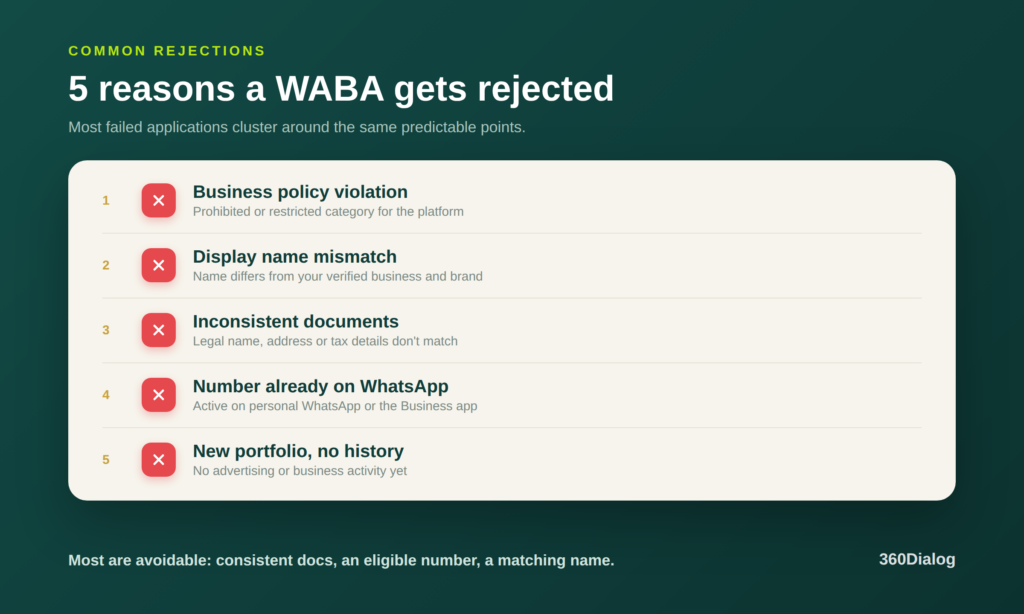
Checklist of the five most common reasons a WABA gets rejected: business policy violation, display name mismatch, inconsistent documents, a number already registered on WhatsApp, and a new portfolio with no activity history.

1. Business policy violation

Why it happens: Certain categories are prohibited from the platform, including firearms, tobacco, illegal drugs, gambling, adult content, and multi-level marketing. Regulated categories such as alcohol or supplements may face additional conditions depending on the market.

How to fix it: Read the WhatsApp Commerce Policy before applying. If your core business falls in a prohibited category, no BSP can obtain access, and no additional documentation will change the outcome. Categories and regional exceptions change, so check the current policy rather than a third-party summary.

2. Display name mismatch

Why it happens: The submitted name does not match the verified business name, website, Page, or public brand. Punctuation, abbreviations, spelling variants, and legal-versus-trading-name differences all count.

How to fix it: Use the registered name or a clearly derived variation. Before resubmitting, compare it against your documents, website, Page, and portfolio profile. Every one of them should either match or make the connection obvious.

3. Inconsistent or incomplete documents

Why it happens: Uploaded documents carry different addresses, entity names, registration numbers, or tax identifiers, often because they were issued years apart, or after an office move that was never reflected on the tax certificate.

How to fix it: Audit each document before uploading. Legal name, registered address, and tax information should be identical across all of them and match your portfolio profile. A small discrepancy triggers the same manual review as a large one.

4. Phone number already registered on WhatsApp

Why it happens: The number is live on personal WhatsApp, the WhatsApp Business App, or another WABA, so API registration fails.

How to fix it: Delete the existing WhatsApp account on that number and allow time for the change to propagate before retrying. A cleaner option under time pressure is to use a number that has never been connected to WhatsApp.

5. New portfolio with no activity history

Why it happens: A portfolio with no advertising or business history may be routed to manual review even when the documentation is accurate.

How to fix it: Use an existing portfolio with legitimate Facebook or Instagram advertising history where possible. If you must start fresh, a small campaign before applying can establish the history that supports automated checks.

What approval does not give you: limitations to plan around

LimitationWhat it means in practice
Opt-in requirementEvery business-initiated recipient must have actively consented. Purchased and scraped lists are a policy violation.
Template approvalNo template, no business-initiated message. Build template review into your campaign lead time.
Customer service windowFree-form replies are only possible inside the window opened by a customer message. Outside it, you need an approved template.
Messaging tierYour daily business-initiated cap starts low and scales with volume and quality history. You cannot buy your way past it.
Phone numbers per WABAUnverified portfolios start capped at two numbers. Verification raises the ceiling.
Regional availabilityCategory permissions and pricing vary by market. Confirm for each country you message into.
BSP dependencyYour provider sits between you and Meta for escalations. Their response time becomes your response time when an account is flagged.

An example workflow, end to end

Once the WABA is live, this is what a working integration looks like in practice:

New website lead submits form  →  CRM contact created with opt-in timestamp and source recorded  →  approved utility template sent confirming the inquiry  →  customer replies, opening the customer service window  →  conversation routed to a sales agent in the shared inbox  →  agent responds free-form inside the window, and the deal record is updated with the conversation thread

The opt-in timestamp is the part teams skip. It is also the record you need if a recipient complains and Meta asks how consent was obtained.

How to protect your approved WABA from restrictions

Approval is where the real work begins. Several hundred WABAs are restricted every month, and in our experience the majority of those restrictions were preventable. An approved account can have its limits reduced, its messaging temporarily blocked, or the account permanently disabled.

Meta monitors your account continuously. Your quality rating is visible in WhatsApp Manager and should be reviewed on a schedule, not after a problem appears.

High block or spam-report rates. When recipients block or report your number, Meta may automatically reduce your messaging tier. This is the most common post-approval problem and among the slowest to reverse. Message only opted-in users, keep content relevant, control frequency, make opt-out instructions unmissable, and watch per-campaign block rates rather than aggregate ones.

Messaging without opt-in. Sending to people who never consented is a direct policy violation. Your opt-in should state that the person is subscribing to WhatsApp messages, what they will receive, which business is sending, and how to unsubscribe. Keep the record.

Template category misuse. Sending marketing content through an approved utility template can trigger template review and account restrictions. Utility templates support a transaction or a customer request. Authentication templates verify. Marketing templates promote. Use each only for its approved purpose.

Sudden volume spikes. Large jumps before your account has history look like abuse. Increase gradually and stay inside your current tier.

Prohibited content. Restricted content can trigger an account-level review even on a previously approved WABA, including adult products, tobacco, regulated financial products, gambling, healthcare claims, and alcohol in restricted markets. Review the applicable policy before each new campaign, not after.

Ignored quality warnings. Meta usually warns before it restricts. Teams that do not check WhatsApp Manager find out only when their limits drop. Review weekly: quality rating trend, block rate, template warnings, and messaging limit changes.

Restrictions escalate in tiers. An initial violation may produce a short block on business-initiated messages. Repeated violations lead to longer blocks across all messaging and can end in permanent disablement. Restrictions can be appealed through Business Support Home in your portfolio, generally within a defined appeal window, but appeals take time and are not guaranteed. Prevention costs far less than recovery.

For agencies and technology providers running multiple client WABAs, managing account health from one place (quality tracking, policy risk, escalation channels) is worth having before the first restriction rather than after.

Your first 90 days

What you do in the first 90 days of messaging largely determines whether the account stays healthy. Start with low volumes, opted-in lists, carefully categorized templates, and relevant content. Build a positive quality rating before you scale into it.

A WhatsApp Business Account (WABA) is the Meta-owned object that gives you programmatic access to the WhatsApp Business Platform. Without an approved WABA, you cannot send a single message through the API.

Approval is not one decision. It is four separate reviews:

  1. Business verification
  2. Display name review
  3. Phone number registration
  4. Message template approval

The WABA approval process is really those four reviews stacked together, each with its own timeline and its own failure modes. The preparation you bring to them decides whether you go live in a few days or spend weeks in back-and-forth with Meta support.

Diagram of the four WABA approval reviews: business verification, display name review, phone number registration, and message template approval, leading to going live on the WhatsApp Business Platform.

This guide is for the person responsible for getting the account live: an ops lead, technical evaluator, or founder working to a launch date. It covers what to prepare before you start, the registration sequence, the reasons for rejection that account for most failed applications, and what to do after approval to keep the account healthy.

Who this guide is for

  • You should read this if you are setting up your organization’s first WABA, if a previous application was rejected, or if you are scoping the lead time for a launch.
  • This is not for you if you only need the WhatsApp Business App on a phone. That app requires no WABA, no verification, and no API access. It also cannot run broadcast campaigns, chatbots, or CRM integration.

What is a WABA, and why does the approval process exist?

A WABA is a commercial-grade account registered within your Meta Business Portfolio that provides API-level access to WhatsApp’s messaging infrastructure. It enables what the consumer app and the WhatsApp Business App cannot support:

  • Broadcast campaigns to opted-in audiences
  • Automated messaging flows and chatbots
  • CRM and helpdesk integrations
  • Shared inbox and agent routing
  • High-volume transactional and authentication messaging

A note on naming: Meta has been migrating from “Business Manager” to “Meta Business Portfolio.” You will still see the older label in some interfaces and documentation. They refer to the same container.

Meta reviews every application because the API allows messaging at scale. Before granting that, Meta needs to establish that your business legally exists, that your use case is permitted under its Business and Commerce policies, that your phone number is eligible, and that your submitted identity matches your public one.

Understanding how the four stages fit together is what separates a clean first setup from a restart.

WhatsApp Business Account approval requirements: what to prepare first

Entering the registration flow without these materials is the most reliable way to trigger a manual review. Inconsistency between them is the single most common cause of delay.

RequirementWhat to check
Meta Business PortfolioActive and in good standing. Create the WABA under your own portfolio, never inside an agency’s or a third party’s. Migrating a WABA between portfolios can be challenging and has limitations. 
Business registration documents (for Meta Business Verification)If your Business is unverified, you will need the following to proceed with verification:
Certificate of incorporation or equivalent registration, tax identification (VAT, EIN, or local equivalent), and proof of business address such as a bank statement or utility bill. The legal name must be identical across all three.
Dedicated phone numberMust not be active on a personal WhatsApp account. Must be able to receive an SMS or international voice call for the one-time passcode. Landlines and VoIP numbers can work if they can receive international calls. Disable any IVR on the line during registration.
Live business websiteLive, branded, and clearly representing the business, with a privacy policy. The website must clearly describe the Business activities. It cannot be a login page.. Meta will check the business website when reviewing the WABA and display name. 
Display nameYour registered business name or a clearly derived branded variation. Generic names are commonly rejected. Capitalization and letter case matter, so use the same naming format as your brand.Example:
If your business name or logo is displayed as “ABC Company”, your WhatsApp display name should also be “ABC Company”, not “abc company”.
Facebook PageNot always mandatory, but consistent naming across the Page, website, portfolio, and display name reduces the chance of manual review.

Name consistency is the highest-leverage preparation step. Differences as small as “Ltd.” versus “Limited,” or a trading name used publicly while a legal name sits on the documents, are enough to move an application from automated to manual review. Audit every touchpoint before you begin: documents, portfolio profile, website footer, Facebook Page, display name.

How to create a WABA: step by step

These are the WABA creation steps using a Business Solution Provider (BSP), which is how most organizations access the WhatsApp Business platform.

1. Set up your Meta Business Portfolio

What to do: Go to business.facebook.com and create or log in to your portfolio.

What you need: Legal company information, an accessible admin email, and your Facebook Page if you have one.

What should happen: Your business information saves without validation errors, and the account shows no restrictions.

How to confirm it worked: The portfolio appears in good standing with your legal entity details visible in Business Info.

If the portfolio is brand new with no advertising history, it may attract additional manual review. Running a small Facebook or Instagram campaign beforehand can establish activity history that supports Meta’s automated checks. Since late 2025, Meta also lets phone numbers inherit the highest messaging limit already reached anywhere in the same portfolio, so setting up inside an established, healthy portfolio can give a new number a stronger starting position than a blank one.

2. Choose your Business Solution Provider

Meta does not grant direct API access to most businesses. A BSP handles API infrastructure, Embedded Signup, phone number onboarding, account management, technical support, and escalation to Meta when something stalls.

Questions worth asking any BSP before you commit:

  • Do you mark up Meta’s conversation fees, or pass them through?
  • Is there a minimum messaging volume or commitment?
  • What is the escalation path when Meta flags an account, and what is the response time?
  • If a setup error is made during Embedded Signup, what can be corrected and within what window?
  • Do we retain ownership of the WABA if we leave?

360Dialog is an official Meta Business Solution Provider, with full API access, transparent pass-through of Meta’s fees, and 24/7 support. Your BSP choice affects every stage that follows, from the quality of the signup experience to how fast a flagged account gets unblocked.

3. Complete the Embedded Signup flow

What to do: Run the in-browser Embedded Signup flow your BSP provides.

What you need: Portfolio admin access, your display name, and business details matching your documents.

What should happen: The flow connects your portfolio to the BSP, creates the WABA, submits the display name, and starts Meta’s review. You will be asked to accept WhatsApp’s Business and Commerce policies.

How to confirm it worked: The WABA appears in your portfolio’s WhatsApp accounts, with the display name showing a pending review status.

Do not close the browser mid-flow. Do not change business details during or immediately after submission, since changes made during a review period can restart that stage.

4. Register and verify your phone number

What to do: Add the number to the WABA and request the one-time passcode.

What you need: A number that can receive the code by SMS or voice call, with IVR disabled.

What should happen: A six-digit code arrives, and entering it within the validity window registers the number and returns a phone number ID.

How to confirm it worked: The number shows as connected in WhatsApp Manager, and you can retrieve its phone number ID via the API.

Once registered, the number can reply to customer-initiated conversations immediately. Business-initiated messaging starts at a low daily tier, commonly reported as 250 unique recipients per day, and scales up as you build a delivery and quality history. Completing business verification is what lifts you off that starting cap.

5. Complete Meta Business Verification (If it’s not already verified. If it’s verified, this step can be skipped)

This is the stage most teams underestimate. Verification confirms your business legally exists, lifts the starting messaging cap, and raises the number of phone numbers you can connect (unverified portfolios are held to two numbers during the initial period).

There are two routes to get verified:

Partner-led Business Verification (PLBV). 360Dialog reviews your documents and submits your business to Meta on your behalf, which is usually the faster and smoother path. You can start it during Embedded Signup for a new account, or by contacting 360Dialog support for an existing one. 360Dialog first checks that you are a real legal entity, that you represent the business, and that your documents are valid and consistent; Meta still makes the final decision. PLBV is limited to three attempts per business, and it cannot run at the same time as a Classic request.

Classic Business Verification. You handle it yourself, directly in Meta Business Suite through your business Security Center. This is the route described below, and also the one to use in specific cases such as government agencies and tech providers, or once you have used up your PLBV attempts.

For the Classic route:
What to do: In your portfolio, go to Settings, then Business Info, then Business Verification.
What you need: business verification documents where the legal name, registered address, registration number, and tax information are identical to each other and to your portfolio profile. That same document consistency also applies to PLBV.

What should happen: If Meta can match your business against public directories, verification may resolve through a phone or email confirmation, sometimes within a day. If not, you upload documents and wait, typically a few business days.

How to confirm it worked: The portfolio shows a verified status and your messaging limit increases.

6. Create your first message templates

What to do: Submit at least one message template for approval before any business-initiated messaging.

What you need: A template with a correct category (marketing, utility, or authentication), clear placeholder context, and no misleading framing.

What should happen: Approval commonly lands within24 hours, sometimes faster for verified businesses and depending on the content length. Template approval is a separate process from WABA approval.

How to confirm it worked: the template shows Approved in WhatsApp Manager, and a test send delivers. Send it to a real number that has opted in (your own phone works, as long as it has given consent) and confirm the message arrives.

Templates get rejected when they are too vague, lack context, use unexplained placeholders, sit in the wrong category, or push promotional content under a utility category. That last one is worth care: a promotional message wearing a utility label is both a rejection reason and, after approval, a restriction reason.

360Dialog’s Sandbox test key only messages your own number and caps at around 200 messages, so it is fine for a first API check but not for real pre-production testing. For that, test your integration with a small opted-in test list before any production campaign. Confirm delivery receipts, webhook payloads, and reply routing while the volume is small enough that a mistake costs nothing.

WABA approval time: what to realistically expect

Approval time depends on your documentation, your portfolio’s history, and whether Meta can verify your company automatically through public registers. The ranges below reflect commonly observed outcomes, not commitments from Meta. Timelines shift as Meta adjusts its review processes, so verify current expectations with your BSP before planning around them.

StageCommonly observed timeframe
Business verification, automatic matchOften under 24 hours when Meta identifies the company in public directories
Business verification (Classic) Roughly 2 to 5 business days
Business verification (PLBV)24 – 48 hours
WABA creation via Embedded SignupUsually same day
Display name reviewOften same day once the business is verified
Phone number registrationMinutes, once the WABA exists
First template approvalRoughly 24 to 48 hours
End to endRoughly 1 to 10 business days

Plan to start at least two weeks before your launch date. The teams that land at the fast end of that range are the ones that prepared consistent documentation, used an established portfolio, submitted an eligible display name and a clean number, completed signup without errors, and then left their business details alone during review.

Display name approval: rules and common mistakes

Your display name is what WhatsApp users see when a message arrives from your account. A rejection here adds a full review cycle, so it is worth getting right the first time.

Usually approved:

  • Your registered business name, for example “Acme Logistics”
  • A clearly derived variation, such as “Acme Support”
  • A brand name connected to a verified parent company
  • A trading name that is verifiable online

Commonly rejected:

  • Generic function names such as “Support,” “Sales Team,” or “Customer Service”
  • Names with no connection to a verifiable business
  • Names implying affiliation with Meta or WhatsApp
  • Names conflicting with your verified documentation
  • Names carrying slogans, descriptions, or promotional language

Four things should align: registered business name, website domain and branding, Facebook Page name, and submitted display name.

If your trading name differs from your legal name, use the trading name consistently across your public properties and make sure both names appear somewhere on your website. That gives the reviewer a path from the legal entity to the public brand.

Common WABA rejection reasons, and how to fix each one

If you are asking why a WABA gets rejected, most cases cluster around five predictable points.

Checklist of the five most common reasons a WABA gets rejected: business policy violation, display name mismatch, inconsistent documents, a number already registered on WhatsApp, and a new portfolio with no activity history.

1. Business policy violation

Why it happens: Certain categories are prohibited from the platform, including firearms, tobacco, illegal drugs, gambling, adult content, and multi-level marketing. Regulated categories such as alcohol or supplements may face additional conditions depending on the market.

How to fix it: Read the WhatsApp Commerce Policy before applying. If your core business falls in a prohibited category, no BSP can obtain access, and no additional documentation will change the outcome. Categories and regional exceptions change, so check the current policy rather than a third-party summary.

2. Display name mismatch

Why it happens: The submitted name does not match the verified business name, website, Page, or public brand. Punctuation, abbreviations, spelling variants, and legal-versus-trading-name differences all count.

How to fix it: Use the registered name or a clearly derived variation. Before resubmitting, compare it against your documents, website, Page, and portfolio profile. Every one of them should either match or make the connection obvious.

3. Inconsistent or incomplete documents

Why it happens: Uploaded documents carry different addresses, entity names, registration numbers, or tax identifiers, often because they were issued years apart, or after an office move that was never reflected on the tax certificate.

How to fix it: Audit each document before uploading. Legal name, registered address, and tax information should be identical across all of them and match your portfolio profile. A small discrepancy triggers the same manual review as a large one.

4. Phone number already registered on WhatsApp

Why it happens: The number is live on personal WhatsApp, the WhatsApp Business App, or another WABA, so API registration fails.

How to fix it: Delete the existing WhatsApp account on that number and allow time for the change to propagate before retrying. A cleaner option under time pressure is to use a number that has never been connected to WhatsApp.

5. New portfolio with no activity history

Why it happens: A portfolio with no advertising or business history may be routed to manual review even when the documentation is accurate.

How to fix it: Use an existing portfolio with legitimate Facebook or Instagram advertising history where possible. If you must start fresh, a small campaign before applying can establish the history that supports automated checks.

What approval does not give you: limitations to plan around

LimitationWhat it means in practice
Opt-in requirementEvery business-initiated recipient must have actively consented. Purchased and scraped lists are a policy violation.
Template approvalNo template, no business-initiated message. Build template review into your campaign lead time.
Customer service windowFree-form replies are only possible inside the window opened by a customer message. Outside it, you need an approved template.
Messaging tierYour daily business-initiated cap starts low and scales with volume and quality history. You cannot buy your way past it.
Phone numbers per WABAUnverified portfolios start capped at two numbers. Verification raises the ceiling.
Regional availabilityCategory permissions and pricing vary by market. Confirm for each country you message into.
BSP dependencyYour provider sits between you and Meta for escalations. Their response time becomes your response time when an account is flagged.

An example workflow, end to end

Once the WABA is live, this is what a working integration looks like in practice:

New website lead submits form  →  CRM contact created with opt-in timestamp and source recorded  →  approved utility template sent confirming the inquiry  →  customer replies, opening the customer service window  →  conversation routed to a sales agent in the shared inbox  →  agent responds free-form inside the window, and the deal record is updated with the conversation thread

The opt-in timestamp is the part teams skip. It is also the record you need if a recipient complains and Meta asks how consent was obtained.

How to protect your approved WABA from restrictions

Approval is where the real work begins. Several hundred WABAs are restricted every month, and in our experience the majority of those restrictions were preventable. An approved account can have its limits reduced, its messaging temporarily blocked, or the account permanently disabled.

Meta monitors your account continuously. Your quality rating is visible in WhatsApp Manager and should be reviewed on a schedule, not after a problem appears.

High block or spam-report rates. When recipients block or report your number, Meta may automatically reduce your messaging tier. This is the most common post-approval problem and among the slowest to reverse. Message only opted-in users, keep content relevant, control frequency, make opt-out instructions unmissable, and watch per-campaign block rates rather than aggregate ones.

Messaging without opt-in. Sending to people who never consented is a direct policy violation. Your opt-in should state that the person is subscribing to WhatsApp messages, what they will receive, which business is sending, and how to unsubscribe. Keep the record.

Template category misuse. Sending marketing content through an approved utility template can trigger template review and account restrictions. Utility templates support a transaction or a customer request. Authentication templates verify. Marketing templates promote. Use each only for its approved purpose.

Sudden volume spikes. Large jumps before your account has history look like abuse. Increase gradually and stay inside your current tier.

Prohibited content. Restricted content can trigger an account-level review even on a previously approved WABA, including adult products, tobacco, regulated financial products, gambling, healthcare claims, and alcohol in restricted markets. Review the applicable policy before each new campaign, not after.

Ignored quality warnings. Meta usually warns before it restricts. Teams that do not check WhatsApp Manager find out only when their limits drop. Review weekly: quality rating trend, block rate, template warnings, and messaging limit changes.

Restrictions escalate in tiers. An initial violation may produce a short block on business-initiated messages. Repeated violations lead to longer blocks across all messaging and can end in permanent disablement. Restrictions can be appealed through Business Support Home in your portfolio, generally within a defined appeal window, but appeals take time and are not guaranteed. Prevention costs far less than recovery.

For agencies and technology providers running multiple client WABAs, managing account health from one place (quality tracking, policy risk, escalation channels) is worth having before the first restriction rather than after.

Your first 90 days

What you do in the first 90 days of messaging largely determines whether the account stays healthy. Start with low volumes, opted-in lists, carefully categorized templates, and relevant content. Build a positive quality rating before you scale into it.